Capcut or Canva: Which Is Right for Your Video Projects?
Capcut and Canva cater to different aspects of creative content creation. Capcut excels in video editing, offering powerful tools like keyframe animation and social media integration, ideal for crafting dynamic videos. On the other hand, Canva specializes in graphic design, providing an extensive template library and easy-to-use customization features, perfect for designing eye-catching visuals and marketing materials.
Whether you prioritize editing videos with professional finesse or crafting visually appealing designs, choosing between Capcut and Canva depends on your specific project needs and creative goals.
What is Capcut?
Capcut is a popular video editing app designed to help users create high-quality videos with ease. Known for its user-friendly interface and powerful editing tools, Capcut allows both beginners and professionals to produce stunning video content.
Originally developed by ByteDance, the same company behind TikTok, Capcut has gained immense popularity due to its seamless integration with social media platforms and its ability to handle various video formats.
What is Canva?
Canva is an all-in-one graphic design platform that empowers users to create visually appealing designs without needing advanced design skills. With its drag-and-drop interface, extensive template library, and a wide range of design elements, Canva caters to everyone from amateur designers to seasoned professionals.
Whether you need to design social media graphics, presentations, posters, or even videos, Canva offers a versatile toolkit to bring your creative ideas to life.
Key Features of Both Tools
Capcut and Canva each come with a set of features tailored to different creative needs. Here’s a quick overview of what each tool offers:
Capcut:
- Video Editing: Advanced video editing tools, including trimming, splitting, merging, and speed adjustment.
- Effects and Filters: A wide range of effects, filters, and transitions to enhance video quality.
- Audio Editing: Comprehensive audio editing capabilities, including music library, sound effects, and voiceovers.
- Text and Stickers: Options to add text, stickers, and other visual elements to videos.
- Export Options: Multiple export options with customizable resolutions for different platforms.
Canva:
- Templates: Thousands of customizable templates for various design needs.
- Design Elements: Extensive library of photos, icons, shapes, and illustrations.
- Text Tools: Advanced text editing options with a variety of fonts and typography effects.
- Collaboration: Real-time collaboration features for team projects.
- Brand Kit: Tools to create and manage brand assets for consistent design.
- Video Tools: Basic video editing features, including trimming and adding text or music.
User Interface and Ease of Use
Navigating Capcut: A User’s Perspective
Capcut’s interface is designed with simplicity in mind, making it accessible to users of all skill levels. Upon opening the app, users are greeted with a clean and intuitive layout. The main screen presents options to start a new project or continue working on existing ones.
The timeline is straightforward, allowing users to drag and drop clips, add transitions, and apply effects with minimal effort. Tools and features are organized logically, ensuring that users can quickly find what they need without feeling overwhelmed.
Exploring Canva’s Intuitive Design
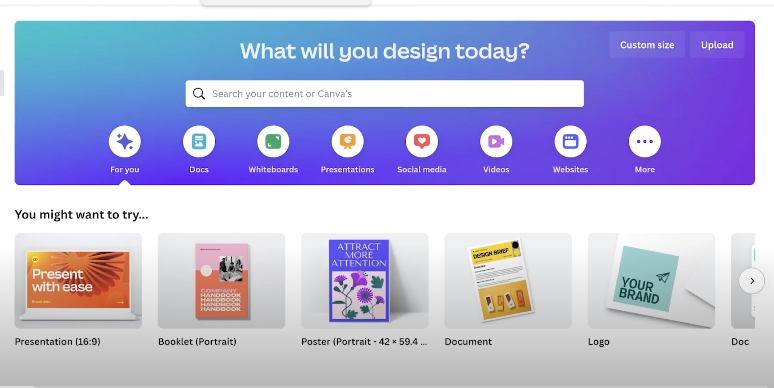
Canva’s interface is similarly user-friendly, emphasizing ease of use and accessibility. The home screen provides quick access to various design templates, recent projects, and the brand kit. Canva’s drag-and-drop functionality makes it easy to add and arrange elements on the canvas.
The sidebar contains all the necessary tools, including text, images, shapes, and templates, allowing users to seamlessly navigate through their design options. Canva’s design editor is both powerful and intuitive, making it suitable for users at all levels of experience.
Comparing User Experience: Capcut vs Canva
When comparing the user experience of Capcut and Canva, both tools excel in providing a smooth and intuitive interface. However, they cater to different creative needs:
Capcut:
- Strengths: Capcut shines in video editing with its simple yet powerful tools. The timeline-based editor is perfect for users who want to quickly assemble and edit video clips.
- Limitations: While Capcut is excellent for video editing, it lacks the extensive design capabilities found in Canva.
Canva:
- Strengths: Canva’s design platform is incredibly versatile, offering a wide range of templates and design elements for various projects. Its collaboration features are also a significant advantage for teams.
- Limitations: Canva’s video editing tools are basic compared to Capcut, making it less suitable for complex video projects.
Capabilities and Functionalities
Video Editing with Capcut
Capcut is renowned for its robust video editing capabilities, which make it a favorite among content creators and social media influencers. Some of the standout features include:
- Advanced Editing Tools: Capcut offers tools for trimming, splitting, merging, and adjusting the speed of video clips. Users can easily cut out unwanted sections and combine multiple clips to create a cohesive video.
- Effects and Filters: The app provides a wide variety of effects and filters to enhance the visual appeal of videos. From vintage and cinematic filters to dynamic transitions, Capcut has it all.
- Audio Editing: Capcut’s audio features are comprehensive, allowing users to add music, sound effects, and voiceovers. It also includes tools for adjusting audio levels and syncing audio with video.
- Text and Stickers: Users can overlay text, stickers, and other visual elements to make their videos more engaging. The app offers a range of fonts, animations, and customizable options.
- Export Options: Capcut supports various export settings, enabling users to choose the resolution and format that best suits their needs, whether for social media or professional use.
Graphic Design with Canva
Canva is a powerhouse when it comes to graphic design, offering a plethora of tools and features that cater to both novice and experienced designers. Key functionalities include:
- Templates: Canva boasts an extensive library of templates for a multitude of uses, including social media posts, presentations, flyers, and more. These templates are fully customizable, allowing users to tweak them to fit their brand and message.
- Design Elements: The platform provides a vast array of design elements such as photos, icons, illustrations, and shapes. Users can easily drag and drop these elements into their projects.
- Text Tools: Canva offers advanced text editing options, including a wide selection of fonts, text effects, and typography tools. Users can create visually appealing text layouts to complement their designs.
- Collaboration Features: Canva supports real-time collaboration, making it easy for teams to work on projects together. Users can share designs, leave comments, and make edits simultaneously.
- Brand Kit: Canva’s brand kit feature allows users to create and manage brand assets, ensuring consistency across all designs. This is particularly useful for businesses and organizations that need to maintain a unified brand identity.
Multimedia Creation: Which Tool Does It Better?
When it comes to multimedia creation, the choice between Capcut and Canva largely depends on the type of project you are working on:
Capcut:
- Best For: Video editing and production. Capcut’s advanced video editing tools and effects make it the superior choice for creating polished video content.
- Limitations: While it excels in video, Capcut’s capabilities in graphic design and static content creation are limited.
Canva:
- Best For: Graphic design and layout projects. Canva’s extensive template library and design elements are perfect for creating visually stunning graphics, presentations, and social media posts.
- Limitations: Canva’s video editing tools are relatively basic, making it less suitable for complex video projects compared to Capcut.
Pricing and Subscription Models
| Feature/Plan | Capcut | Canva |
|---|---|---|
| Free Plan | Yes | Yes |
| Free Plan Features | Basic video editing tools, limited effects and filters, watermark on exported videos | Access to thousands of templates, limited design elements, basic features, watermark on some designs |
| Pro Plan | Capcut Pro | Canva Pro |
| Monthly Price | $9.99/month | $12.99/month |
| Annual Price | $59.99/year | $119.99/year |
| Pro Plan Features | – No watermark on exported videos<br> – Access to premium effects and filters<br> – Advanced editing tools<br> – Additional music and sound effects<br> – Higher resolution exports | – No watermark on designs<br> – Access to premium templates and design elements<br> – Brand Kit for consistency<br> – Advanced collaboration tools<br> – Magic Resize feature<br> – 100GB cloud storage |
| Team Plan | Not available | Canva for Teams |
| Team Plan Price | N/A | Starting at $30/month for 5 users |
| Team Plan Features | N/A | – All Pro features<br> – Team collaboration tools<br> – Admin controls<br> – Shared templates and brand assets<br> – 1TB cloud storage |
| Enterprise Plan | Not available | Canva Enterprise |
| Enterprise Plan Price | N/A | Custom pricing |
| Enterprise Plan Features | N/A | – All Team features<br> – Advanced security and support<br> – Single sign-on (SSO)<br> – 24/7 Enterprise support |
Advanced Features and Customization
Capcut’s Advanced Editing Tools
Capcut offers a variety of advanced editing tools that cater to users looking to enhance their video content:
- Multi-Layer Editing: Users can layer multiple video clips, images, text, and effects to create complex compositions. This feature allows for intricate editing and seamless integration of various media elements.
- Keyframe Animation: Capcut supports keyframe animation, enabling users to create smooth, customized motion effects. This is particularly useful for animating text, stickers, and other elements within the video.
- Chroma Key (Green Screen): The chroma key tool allows users to replace the background of a video with any image or video. This feature is essential for creating professional-looking content with dynamic backgrounds.
- Advanced Color Grading: Capcut provides detailed color grading options, including adjustments for brightness, contrast, saturation, and color temperature. Users can also apply LUTs (Look-Up Tables) for consistent color correction across clips.
- Masking and Blending Modes: The app includes masking tools that let users apply effects to specific parts of a video. Blending modes offer additional creative possibilities by allowing layers to interact in unique ways.
- Speed Ramping: Capcut’s speed ramping feature enables users to create dramatic effects by varying the speed of video clips, making it possible to emphasize specific moments within a video.
Canva’s Customization Options
Canva provides a wide range of customization options, making it a versatile tool for various design needs:
- Custom Templates: Users can create and save custom templates for recurring design tasks, ensuring consistency across projects and saving time.
- Brand Kit: Canva’s Brand Kit allows users to upload brand assets, such as logos, color palettes, and fonts, for easy access during the design process. This feature helps maintain brand consistency across all designs.
- Magic Resize: With the Magic Resize feature, users can quickly resize their designs for different platforms and formats. This tool automatically adjusts elements to fit the new dimensions, simplifying the process of creating multi-platform content.
- Customizable Animations: Canva offers basic animation tools that let users animate text, images, and other elements. Users can choose from a variety of animation styles and customize the timing and order of animations.
- Advanced Typography: Canva provides extensive typography options, including a wide range of fonts and text effects. Users can also upload custom fonts to ensure their designs match their brand’s style.
- Interactive Presentations: Canva’s interactive presentation tools allow users to create engaging slideshows with clickable links, embedded videos, and transitions. This is ideal for creating dynamic presentations and online content.
Feature Comparison: Which Tool Offers More?
When it comes to advanced features and customization, Capcut and Canva excel in different areas:
Capcut:
- Strengths: Capcut is a powerhouse for video editing, offering advanced tools like keyframe animation, chroma key, and speed ramping. These features make it ideal for users who need detailed control over their video content.
- Limitations: While Capcut’s video editing capabilities are top-notch, it lacks the depth of graphic design and static content customization that Canva offers.
Canva:
- Strengths: Canva shines in graphic design and customization, providing extensive template options, a robust Brand Kit, and tools like Magic Resize and advanced typography. These features make it perfect for creating cohesive brand materials and versatile designs.
- Limitations: Canva’s video editing tools are relatively basic, making it less suitable for complex video editing tasks compared to Capcut.
Integration and Compatibility
Integrating Capcut with Other Platforms
Capcut offers several integration options to enhance the user experience and streamline workflows:
- Social Media Integration: Capcut seamlessly integrates with popular social media platforms like TikTok, Instagram, and YouTube. Users can directly export and share their edited videos to these platforms, making it easy to distribute content.
- Cloud Storage: Capcut supports integration with cloud storage services such as Google Drive and Dropbox. This allows users to import media files from their cloud storage accounts and save their projects online for easy access and backup.
- Mobile and Desktop Compatibility: Capcut is primarily a mobile app available for both iOS and Android devices. However, users can also access a desktop version for more extensive editing on larger screens.
- Audio Libraries: Capcut provides integration with music and sound effect libraries, offering a wide range of audio options to enhance video content. Users can also import their own audio files from external sources.
Canva’s Compatibility with Various Devices and Apps
Canva is designed to work seamlessly across different devices and integrates with numerous apps to expand its functionality:
- Cross-Platform Availability: Canva is accessible on both desktop and mobile devices, including Windows, macOS, iOS, and Android. This cross-platform compatibility ensures that users can work on their designs from anywhere, on any device.
- Third-Party App Integrations: Canva integrates with various third-party apps to enhance productivity and collaboration. Notable integrations include Slack, Google Workspace, Dropbox, and HubSpot. These integrations allow users to import and export files, collaborate with team members, and streamline their workflows.
- Website Embedding: Canva provides options to embed designs directly into websites and blogs. Users can generate embed codes for their designs, making it easy to share interactive content online.
- Email Marketing: Canva integrates with email marketing platforms like Mailchimp, enabling users to design and send professional-looking email campaigns directly from Canva.
- Print Services: Canva offers integration with printing services, allowing users to order prints of their designs, including business cards, posters, and other marketing materials, directly from the platform.
Which Tool Offers Better Integration?
When comparing the integration and compatibility features of Capcut and Canva, each tool has its own strengths:
Capcut:
- Strengths: Capcut excels in social media integration, making it an excellent choice for content creators who frequently share videos on platforms like TikTok and Instagram. Its compatibility with cloud storage services and mobile devices adds to its convenience for on-the-go editing.
- Limitations: While Capcut offers integration with audio libraries and cloud storage, it lacks the extensive third-party app integrations that Canva provides.
Canva:
- Strengths: Canva’s extensive compatibility with various devices and third-party apps makes it a versatile tool for graphic design and collaboration. Its integration with email marketing platforms, website embedding, and print services expands its functionality beyond digital design.
- Limitations: Canva’s video editing capabilities are limited, making it less suitable for users who need advanced video editing tools and social media-specific integrations that Capcut offers.
User Reviews and Feedback
What Users Love About Capcut
Capcut has garnered a loyal following due to its robust features and ease of use. Here are some aspects that users particularly appreciate:
- Intuitive Interface: Many users praise Capcut for its user-friendly interface, which makes video editing accessible even for beginners.
- Powerful Editing Tools: Users appreciate the variety of advanced editing tools, such as keyframe animation, chroma key, and speed ramping, which allow for professional-quality video production.
- High-Quality Exports: The ability to export videos in high resolution without watermarks (in the Pro version) is a significant plus for users.
- Free Access: The availability of a comprehensive free version with enough features to create impressive videos is highly valued by users, especially those on a budget.
- Social Media Integration: Users find it convenient to directly share their edited videos to platforms like TikTok, Instagram, and YouTube.
Praise and Criticisms of Canva
Canva has a strong user base due to its versatility and ease of use in graphic design. Here’s what users generally like and dislike about Canva:
Praise:
- Extensive Template Library: Users love the wide range of templates available for various design needs, which significantly speeds up the design process.
- Ease of Use: Canva’s drag-and-drop interface is frequently highlighted as being very intuitive, making it accessible to users with no prior design experience.
- Collaboration Features: The real-time collaboration tools are a major plus for teams working on design projects together.
- Brand Kit: Businesses appreciate the Brand Kit feature, which helps maintain consistency across all design materials.
- Versatility: Users value Canva’s ability to create a variety of content types, from social media graphics to presentations and marketing materials.
Criticisms:
- Basic Video Editing: Some users find Canva’s video editing capabilities too limited for more complex projects.
- Cost of Pro Features: While the free version is powerful, some users feel that the cost of the Pro version is high, especially for small businesses or individual users.
- Performance Issues: There are occasional complaints about the platform’s performance, particularly with larger projects, where it can become slow or unresponsive.
Real User Experiences: Capcut vs Canva
When comparing Capcut and Canva based on user feedback, several key points emerge:
Capcut:
- Best For: Users looking for a powerful, user-friendly video editing tool with advanced features and seamless social media integration.
- Common Praise: Easy-to-use interface, high-quality exports, and powerful free version.
- Common Criticism: Limited graphic design capabilities compared to Canva.
Canva:
- Best For: Users needing a versatile graphic design tool with extensive template options and collaboration features.
- Common Praise: Intuitive drag-and-drop interface, vast template library, and strong collaboration tools.
- Common Criticism: Limited advanced video editing features and occasional performance issues with large projects.
Conclusion: Making the Right Choice
Choosing between Capcut and Canva boils down to your specific creative needs:
- Capcut is the clear choice for video editing enthusiasts and content creators who prioritize advanced editing tools, social media integration, and high-quality exports. Its intuitive interface and robust features make it ideal for those focusing primarily on video content.
- Canva, on the other hand, excels in graphic design and is perfect for users looking to create visually appealing graphics, presentations, and marketing materials. With its extensive template library, collaboration features, and brand kit functionality, Canva is best suited for creating cohesive brand identities and versatile designs.
Ultimately, your decision should hinge on whether you need powerful video editing capabilities (choose Capcut) or comprehensive graphic design tools (opt for Canva). Both platforms offer free versions to get started, allowing you to explore their features before committing to a paid plan.
FAQs
Can I Use Both Capcut and Canva Together?
Yes, you can use both Capcut and Canva together for different aspects of your creative projects. Use Capcut for video editing, including trimming, effects, and social media integration. Canva complements this by offering extensive graphic design tools, templates, and collaboration features.
Is Capcut Suitable for Beginners?
Yes, Capcut is designed to be user-friendly, making it suitable for beginners who are new to video editing. It offers a straightforward interface with intuitive editing tools that allow users to create professional-looking videos without prior experience.
How Can Canva Benefit Professional Designers?
Canva offers professional designers a robust toolkit for creating visually stunning designs across various formats. Its extensive template library, advanced customization options, and collaboration features make it invaluable for maintaining brand consistency and efficiently producing high-quality design assets.